
The extension's views
The M5wallet browser extension opens in three ways:
- Popup: select the M5wallet button in Chrome’s toolbar, or press Alt+Shift+O (Option+Shift+O on a Mac).
- Side panel: stays open beside the website you’re using.
- Full tab: the whole app in a browser tab, with every section.
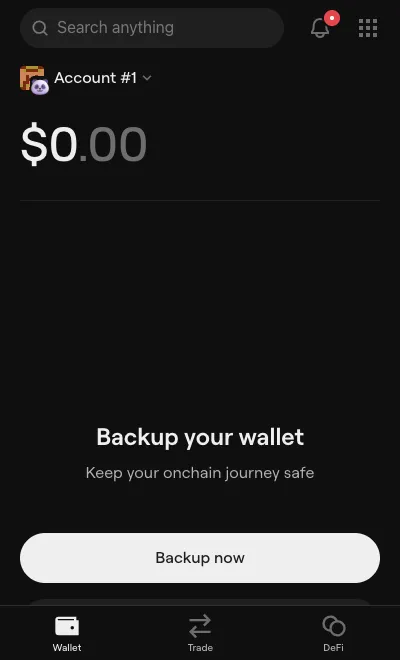
To switch, open the menu with the grid icon at the top right of the Wallet tab, then select Open as side panel, Open as popup or Expand view.
What each view includes
Section titled “What each view includes”| Tab | Popup | Side panel | Full tab |
|---|---|---|---|
| Wallet | Yes | Yes | Yes |
| Trade | Yes | Yes | Yes |
| DeFi | Yes | Yes | Yes |
| Market | No | No | Yes |
| Perps | Opens a full tab | Opens a full tab | Yes |
| Browser | No | Only when the panel is wide | Yes |
Token approvals also open in a full tab.
Pin M5wallet to the toolbar
Section titled “Pin M5wallet to the toolbar”Pinning is a Chrome feature: select the puzzle-piece icon in the toolbar, then the pin next to M5wallet.
The menu
Section titled “The menu”The menu holds Settings, Scan QR code and Lock now, plus wallet tools: Backup, Address book, Network, Preferences, Security, Bulk copy addresses and Bulk send. The version number is at the bottom.